INTRO – A response tab is essentially the ATS that is provided by OptimHire to manage each and every job posting for FREE. In the response tab you will find unique features that help track and manage all the profiles for your job posting. Below are all the features and how to utilize them.
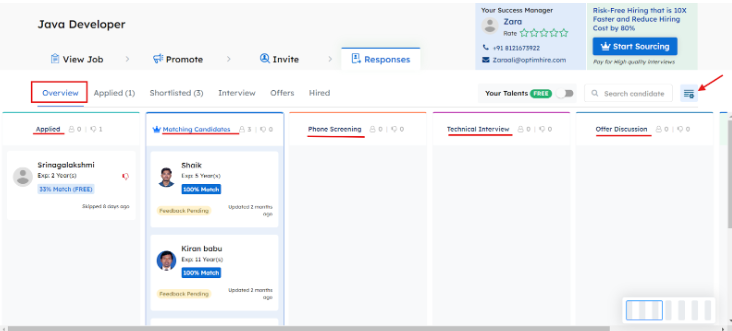
Find the Response – On the top left you will find the name of your job posting and the tab marked as “Response” will take you to the Response tab. It will have stages marked as “Overview, Applied, Shortlisted, Interview, Offer & Hired.”

Overview Stage – The “Overview Stage” will give you an overview of all the profiles in their respective stages. You will find all the stages such as “Applied, Matching Candidates, Phone Screening, Technical Interview, Offer Discussion ect.” These stages are customizable when you make the job posting or you can just click the little setting button on the left side. You can easily add more stages according to your rounds of interview.
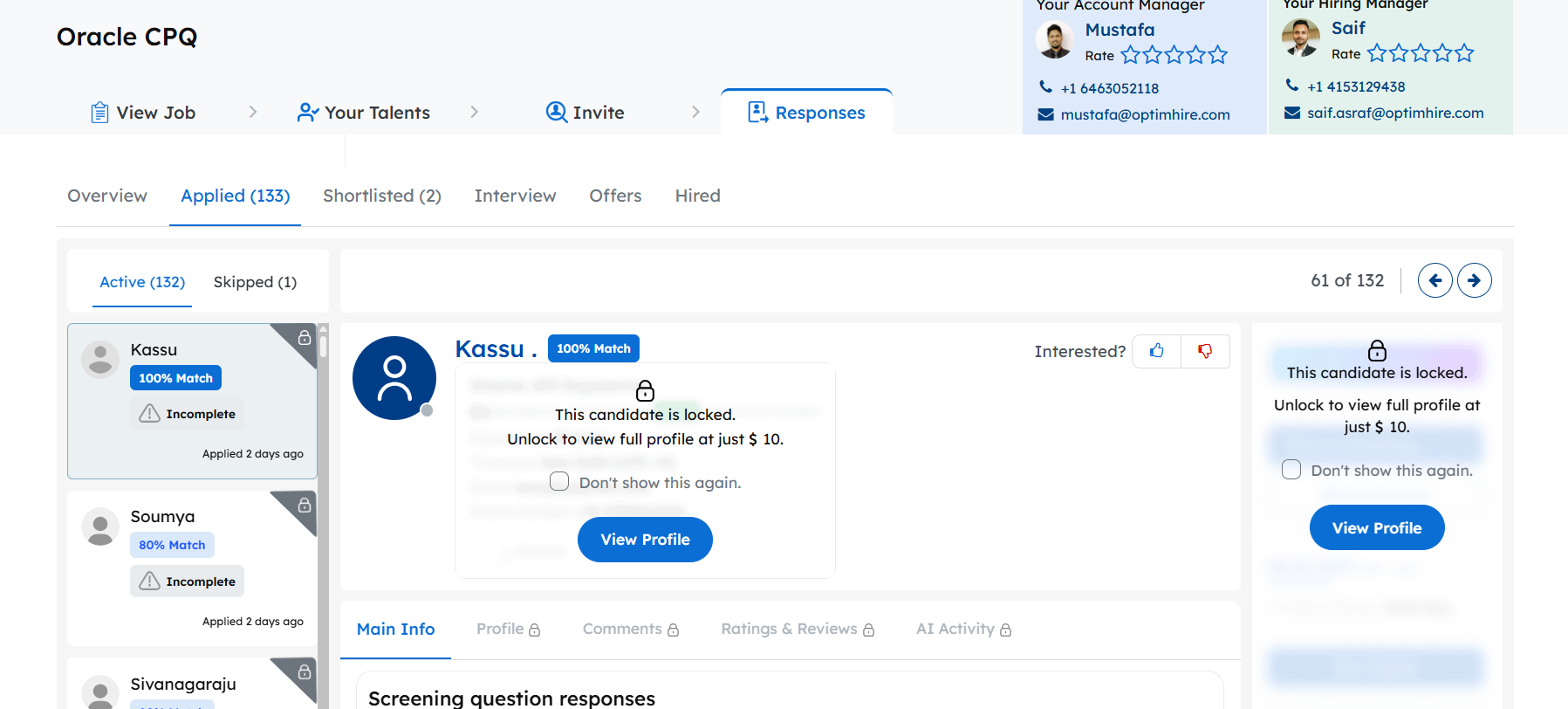
Applied Stage – This stage is for all the candidates who have applied to your job which have been pre-screened. When you click on their profile you can see how they preformed in you prescreening round and if they are matching or not. If the candidate is above 50% matching it will cost $20 and if its below 50% matching it will cost $10. Any candidate who have an “Incomplete” tag on their profile will cost $10 as they have not answered all the questions.
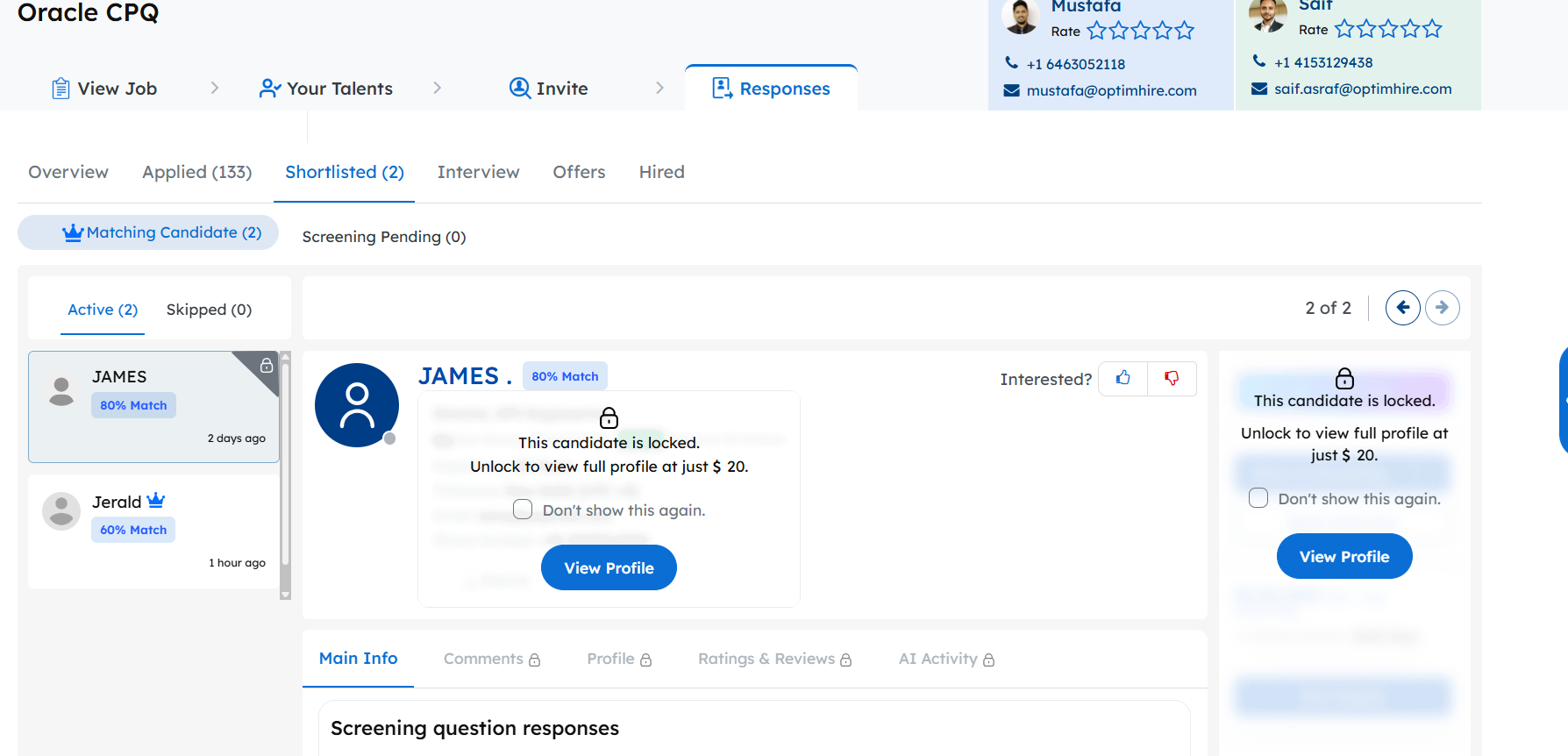
Shortlisted Tab – In this tab, you will have two stages, “Matching Candidates & Phone Screening” The Matching Candidates stage is where our AI Recruiter will submit profiles that match your requirement. You can view all the matching profiles and move them to the next stage or simply skip them. If you have called the candidate, you keep them in the Phone Screening stage. These profiles will be above 50% matching and will be locked, you can view whichever one you please.
Interview, Offers, Hired Tab – These tabs are utilized for keeping the candidates in their respective stages. You can move the candidates to Offered or Hired after the interview is completed.
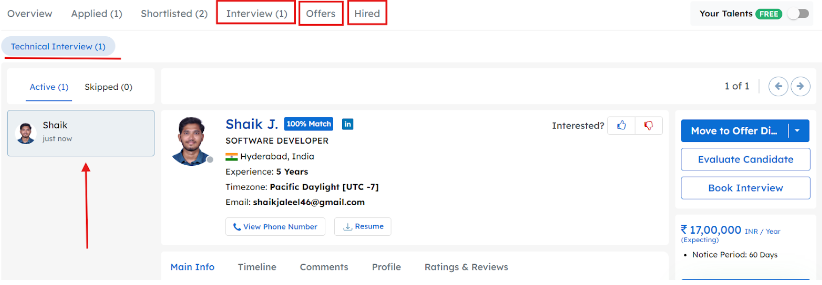
Profile – You will find everything about a profile in the tabs “Main Info, Timeline, Comments, Profile along with Ratings & Reviews” In Main Info, you will find how the candidate answered your screening questions and if you scroll down you will find their original resume. In Timeline, you will be able to see the timeline of the candidate and history of their movement in the ATS. In the Comments tab, you can view the comments of anyone from our team giving you more info about the candidate or a phone call recording. Here you can add your own comment as well about the candidate. In the Profile tab, you will see the entire profile of the candidate like previous work history, projects worked, education, etc. In Ratings and Reviews, you will find any ratings that previous employees had given this candidate or you can write your own review as well.
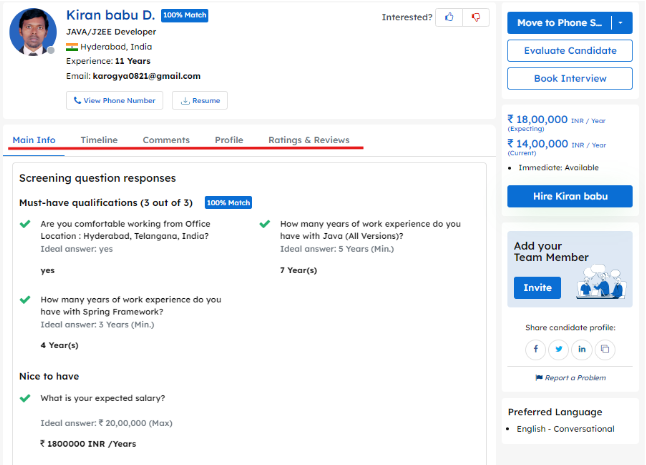
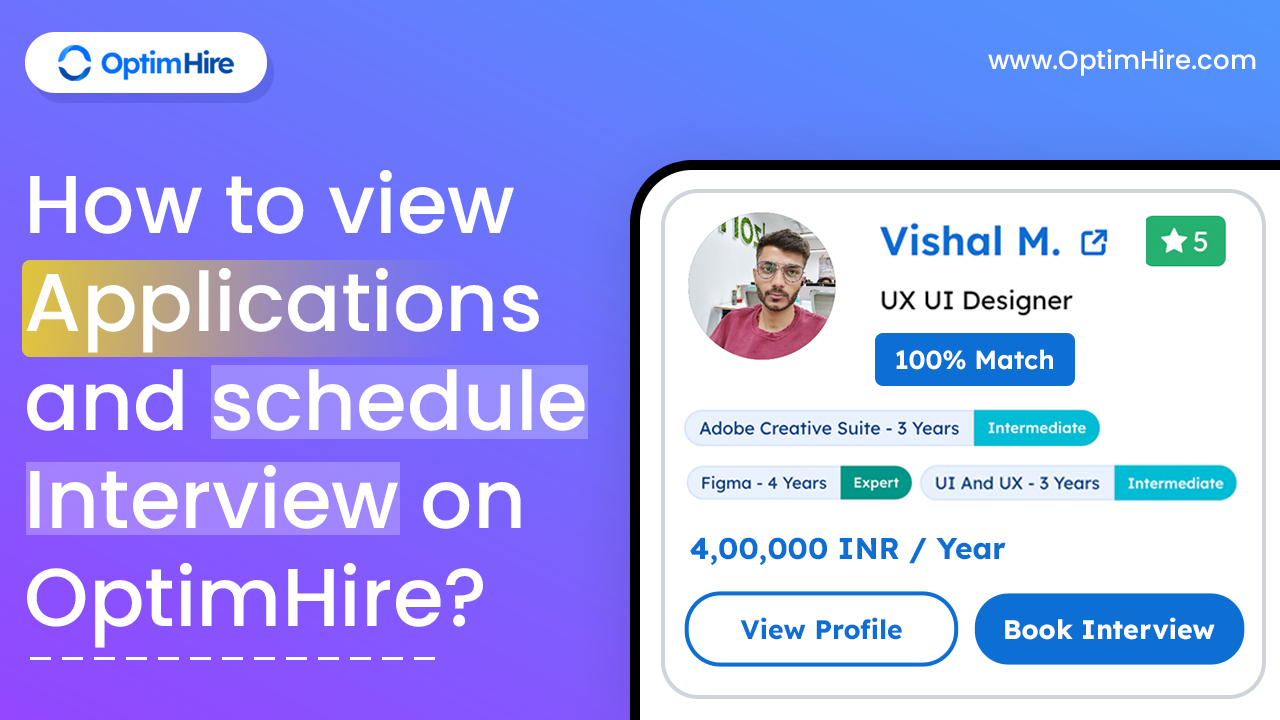
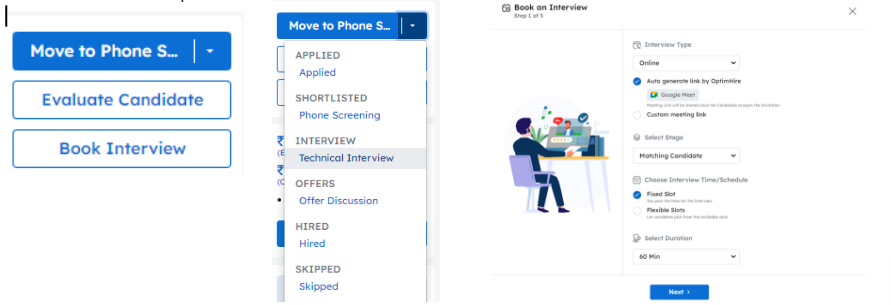
Next Step of Candidate – You will see 3 options on the right hand side of every candidate profile named as, “Move to, Evaluate Candidate & Book Interview” you can either move the candidate to the next step, evaluate the candidate for the current stage and how they performed or book an interview from the platform itself.
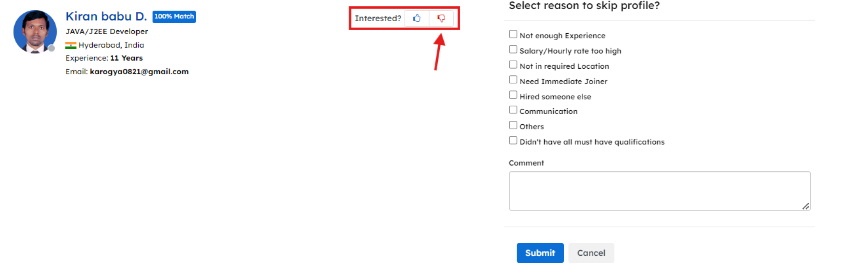
Skip Profile – You can easily skip the profile if it does not meet the criteria. Just click on the thumbs up button next to the word interested and select the reason for skipping the candidate and the stage will automatically change.
These are all the features you can employ in OptimHire’s response tab. We have created all these preferences so that you can customize your ATS and use it to your benefit and liking. If you are facing any issues while trying to navigate through the responses tab, please reach out to your Success Manager. Happy Hiring!