Learn how to navigate your OptimHire profile settings in this quick and easy guide!
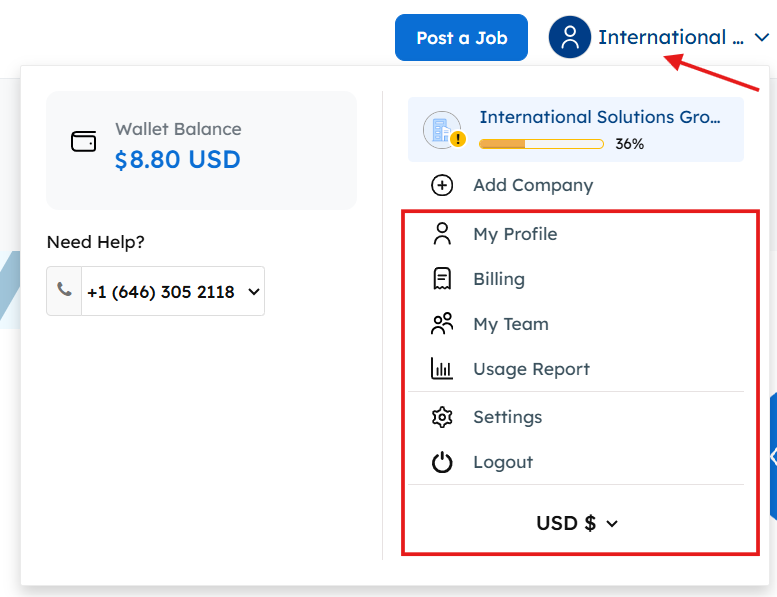
Access Settings – When you log into your OptimHire account, on the top right you should click on your name or your company’s name to get the Settings Menu. You will be able to see options such as My Profile, Billing, My Team, Usage Report, Settings and Logout. You will also see the option to change your view currency.
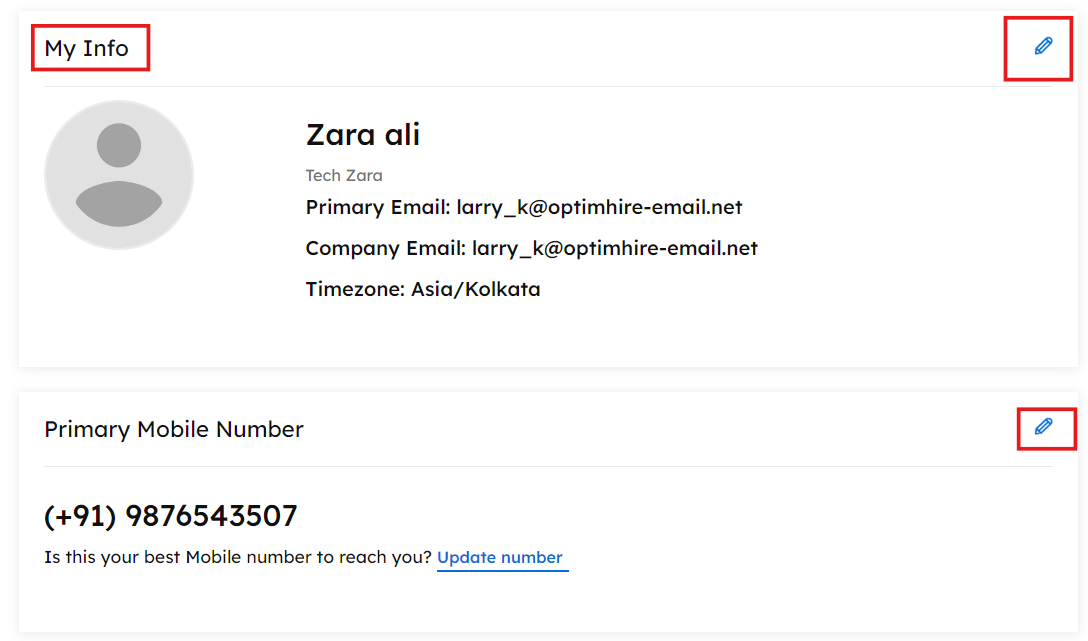
My Profile – (All) Click on “My Profile” to access your profile and see My Info. You can edit your profile by clicking the pencil icon on the right.
Billing – To check your previous billing statements and download invoice, click on “Billing” in the menu option.

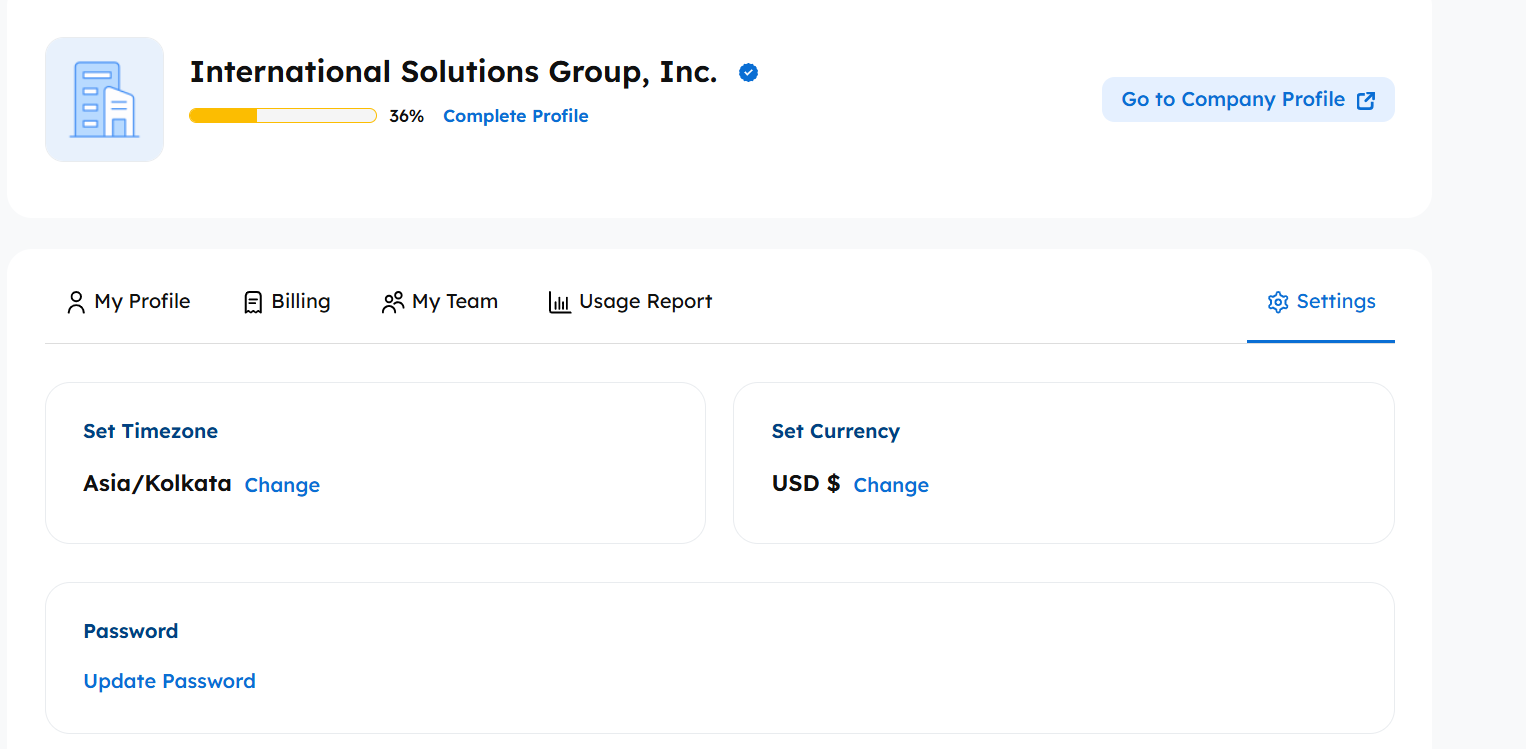
Settings – In the settings tab you can change the currency of your account, change password or delete it if not required anymore.
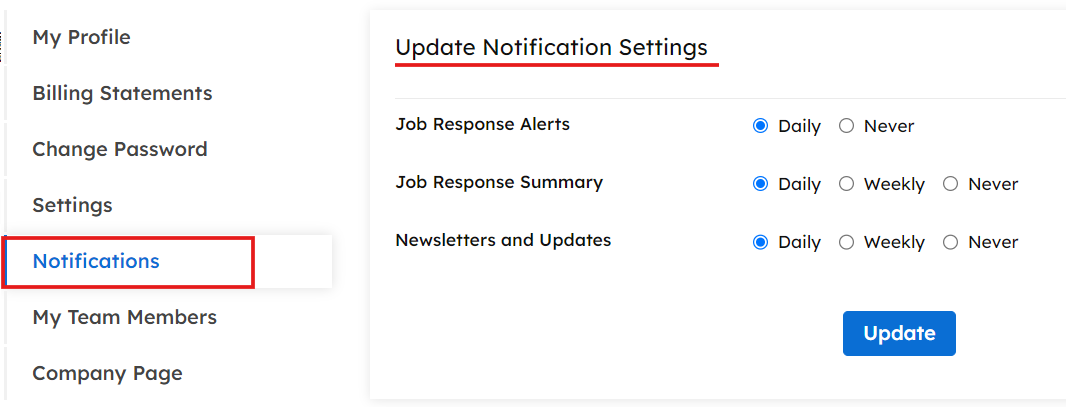
Notifications – – In the notification section you can control the frequency of notifications that you wish to get.
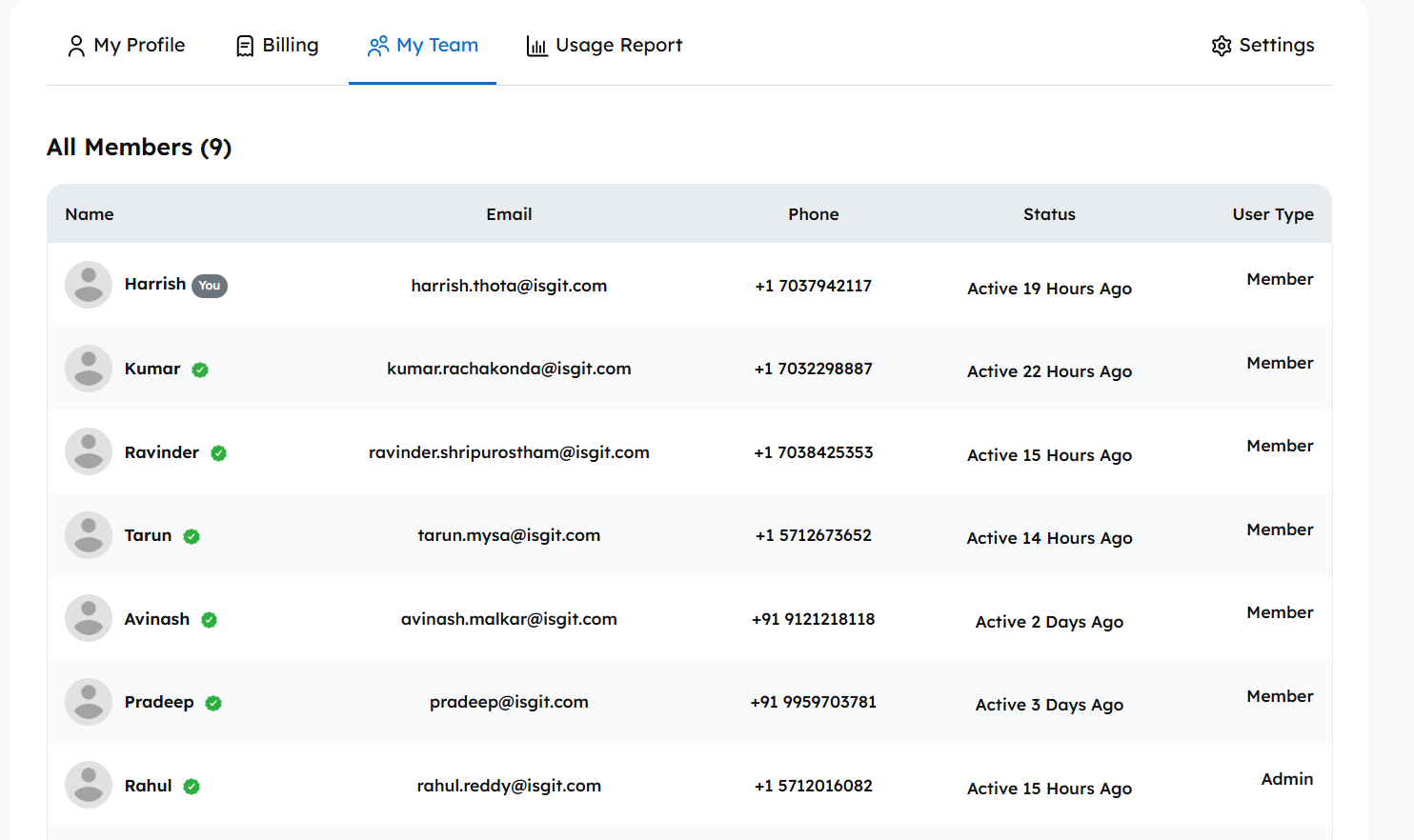
My Team – If you want to add team members to your company click on My Team and click +Add Team Member. Fill in their contact details and invite them. They will receive an email to sign up and will be added to your company. This option will be given to the Admins of the account and not the Member.
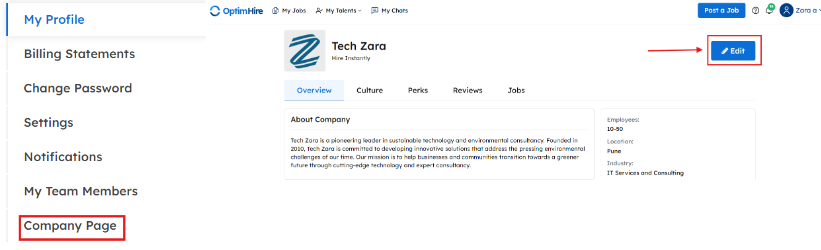
Company Page -You can access and edit your company page by clicking on “Company Page” it will redirect you to your company profile page. From there you can review your company profile and edit to add or subtract.
This is how to navigate through My Profile Settings. You can utilize these benefits for a more seamless experience at OptimHire. If you have any questions, please reach out to your Success Manager.