Learn how to navigate the usage report at OptimHire. Learn how to track your credits and the candidates!
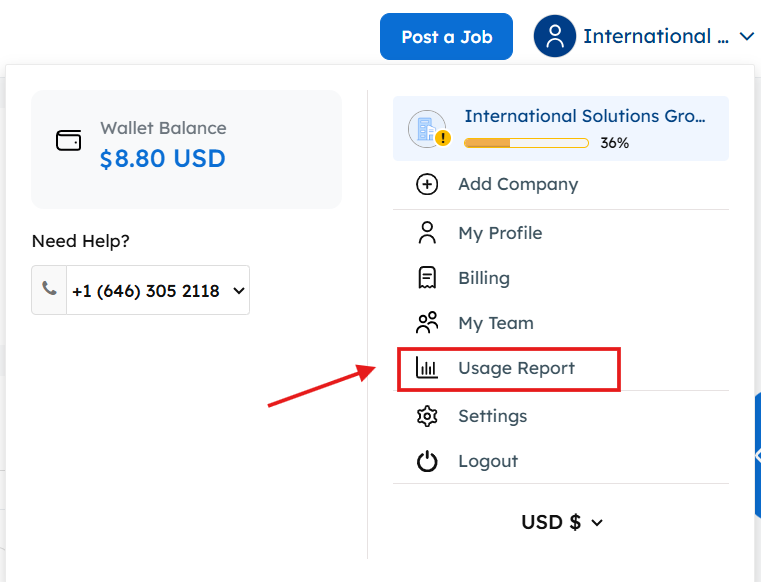
Access Usage Report – To get to the credit usage report, click on your name/company name on the top right. You will get a menu list, click on the usage report.
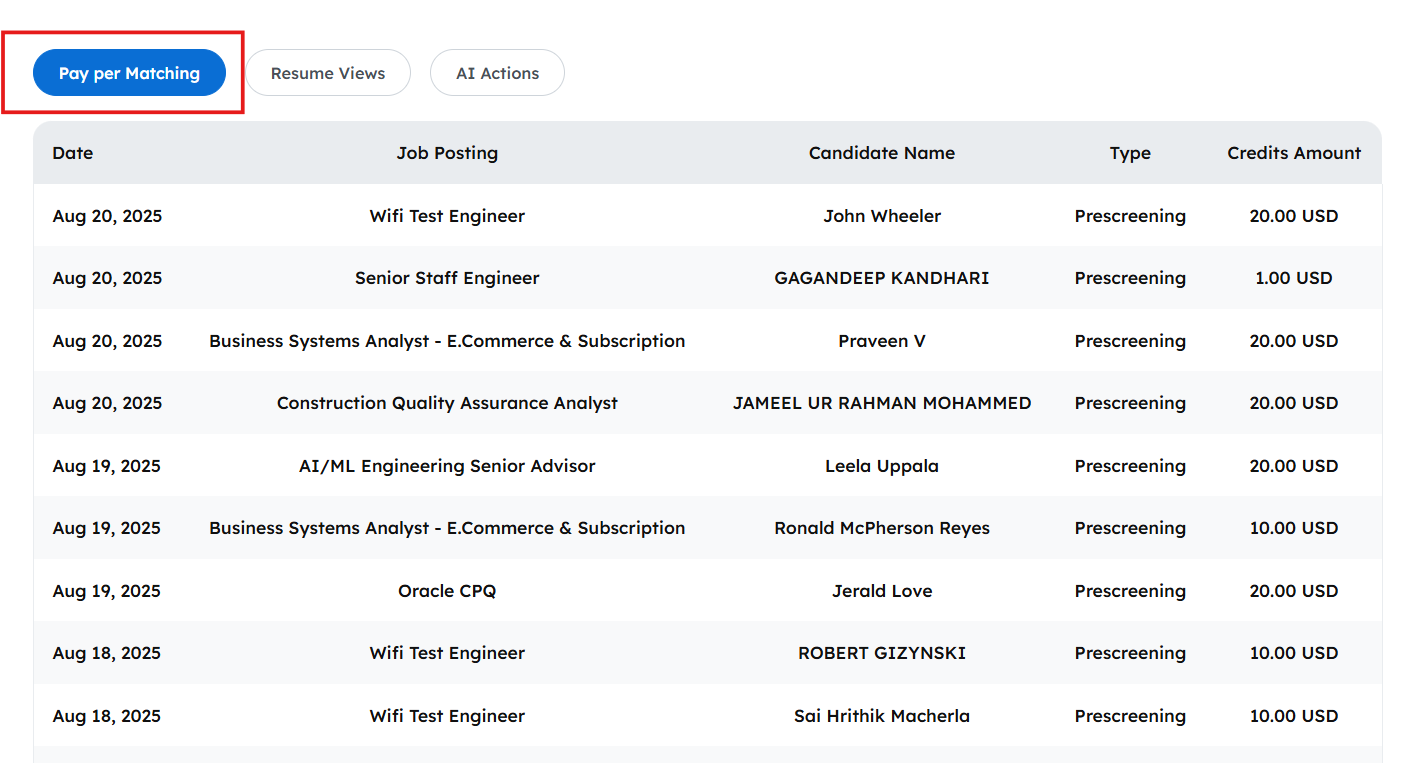
Pay Per Matching – In this tab you will find a list of all the matching candidates pre-screened by our AI recruiter. You can see that the list is divided in sections of dates, job posting title, candidate name, and credit amount.
Resume Views – If you have purchased resumes with your credits, you can keep track of them in the “Resumes Views” tab. You can see that the list is divided in sections of dates, job posting title, candidate name and credit amount if applicable.

AI Actions – If you have used your credits to invite and screen a candidate to apply to your job, you can view it by clicking the AI Actions button. You can see that the list is divided in sections of dates, job posting title, candidate name and credit amount if applicable.

That is everything you need to know about navigating the usage report! If you have any question please contact your Success Manager.