Learn how to navigate the Invite Tab at OptimHire in this article!
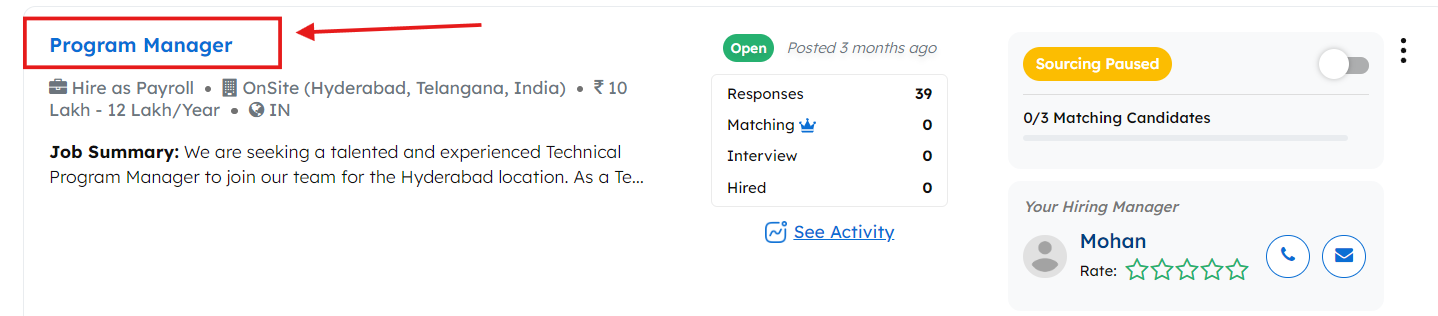
Access Invite Tab – To get to the invite tab, please click on the job name on your dashboard that you would like to view the candidates for.
Invite Tab & Filters – Click the Invite button to access the Invite Tab. You will notice your filters. You can add or subtract any filters you want in the job posting from the invite tab. You simply browse the filters and add the new filters and click “Apply Filter” You can choose from Basic or Advance search. Advance search allows you to us our Boolean search filter. You can use the “Generate with AI” option to generate a string with AI or you can type your own keyword search.
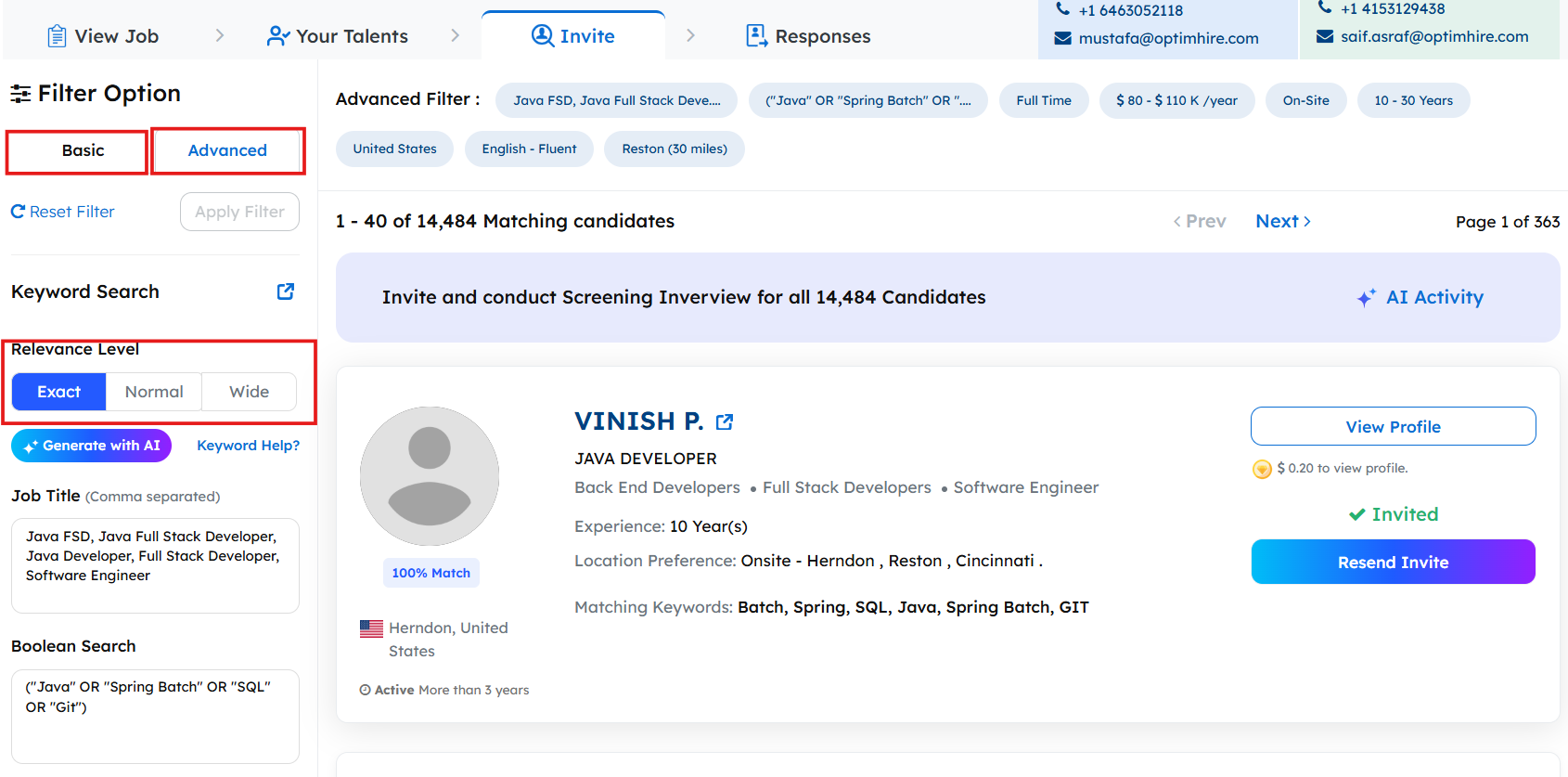
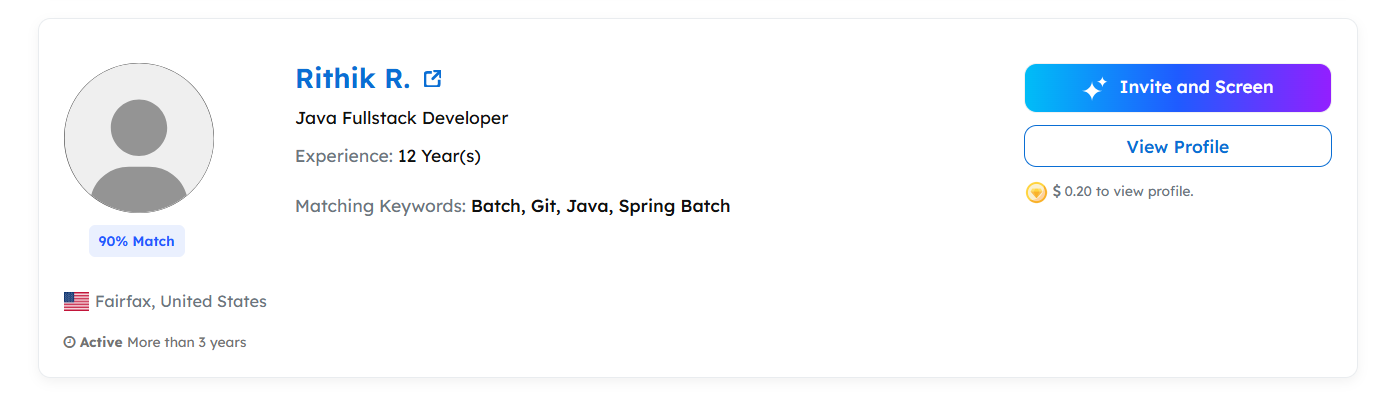
View Profiles – Once the filters are added, you will find out how many matching candidates we have in our database that match your requirement. You can view the candidates ECTC,CTC and notice period. If you would like to view their full profile, you can click on the small pop out button next to their name or click “View Profile”. If you would like to invite the candidate to apply to your job, you can click the Invite and Screen button to Pre-screen the candidate.
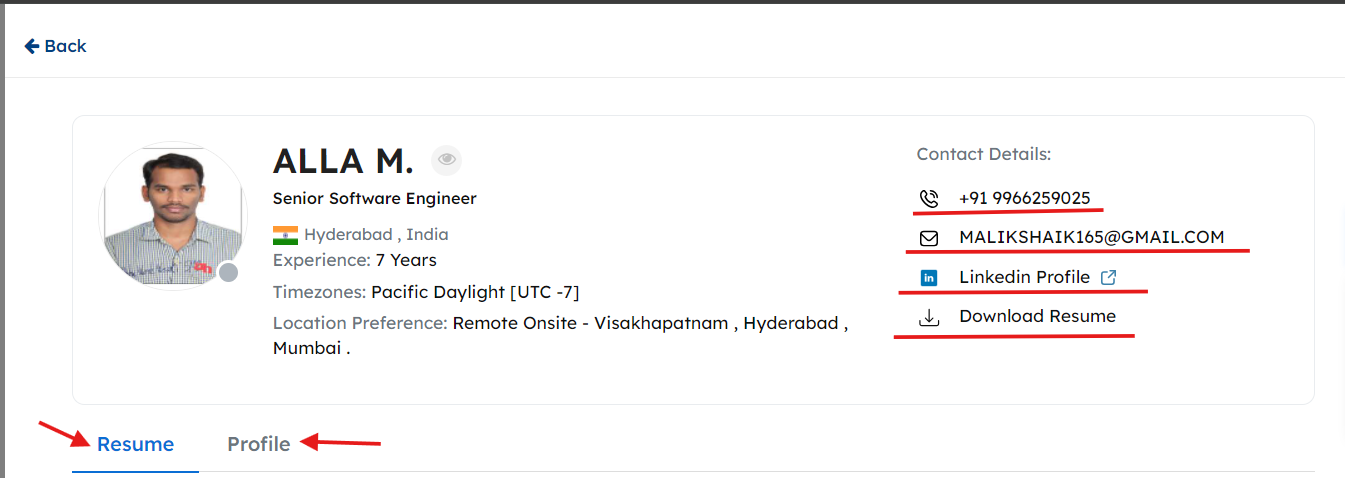
Checking Out a Profile – When you Click View profile, you will be able to see all the details of that candidate. Their contact details, linkedin profile, and original resume will be visible to you.
That is all you need to know about how to navigate through the invite tab for a particular job at OptimHire! If you have any questions or need assistance, please contact your Success manager.